Contentful
Install, configure, and use the Raster app for Contentful — and query your assets through Contentful's GraphQL API.
The Raster app for Contentful lets editors pick images from a Raster library directly inside a Contentful entry. Asset references are stored as JSON, so they flow through Contentful's GraphQL API like any other content.
Before you begin
Make sure you have a Raster account — sign up for free if you do not. You will also need two things from your Raster organization: its ID and an API key.
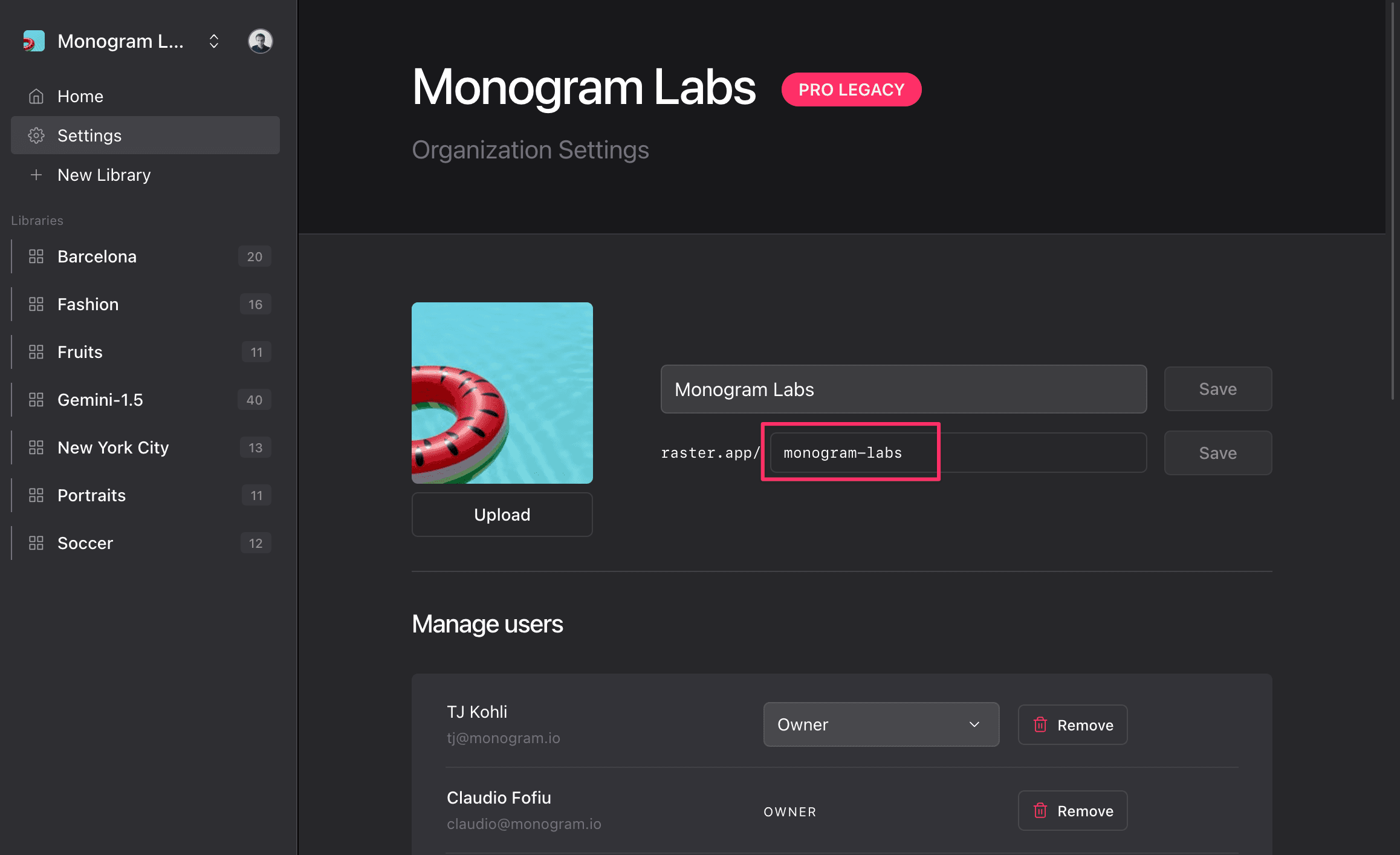
Find your organization ID
In the Raster app, go to Organization name → Settings. The organization ID
is the slug in the URL right after raster.app/.
Create an API key
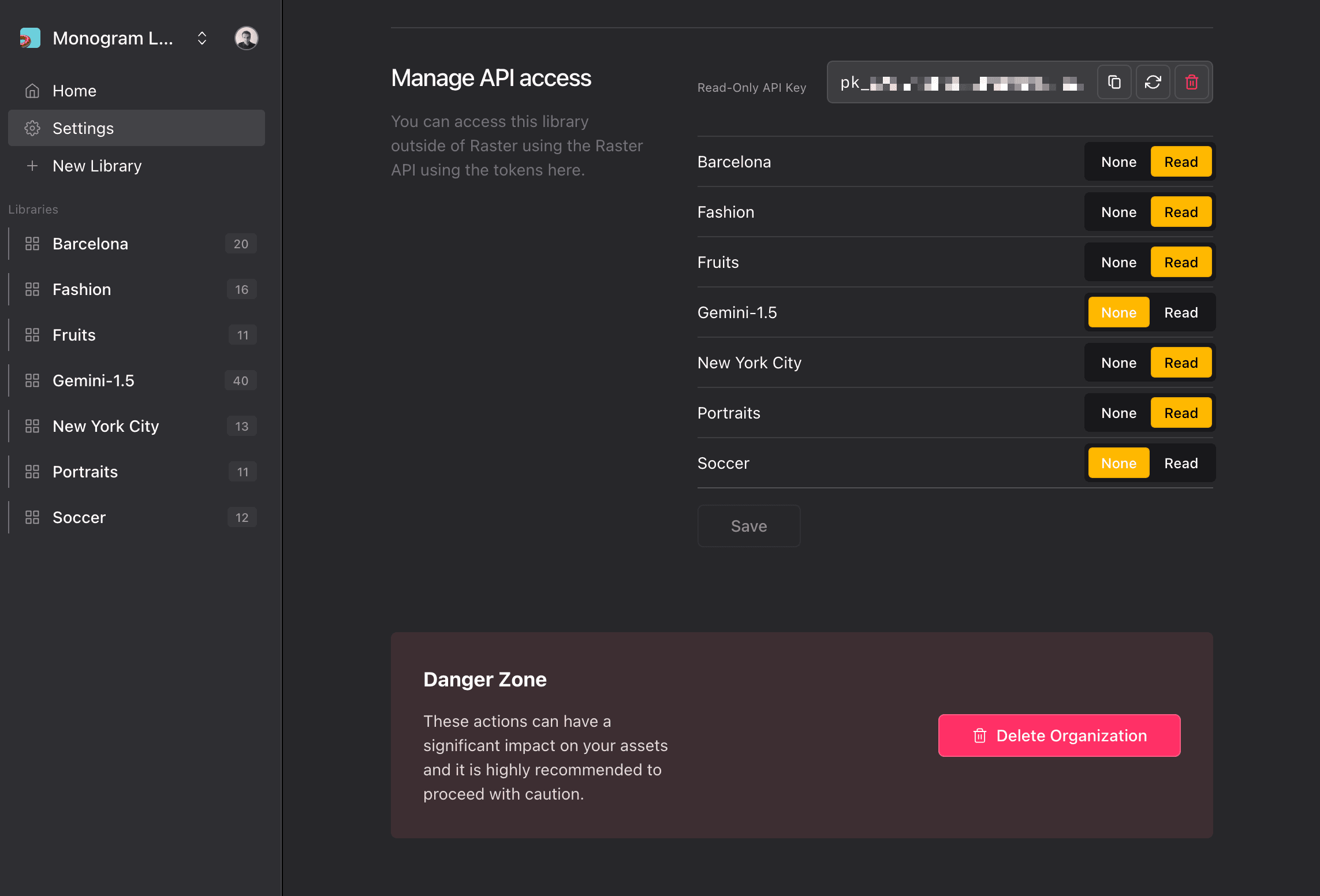
In the same Settings area, set up an API key and enable library-level access:
Generate a key
Create a new API key.
Grant library access
Enable Read access for every library you want to reach from Contentful.
Save
Save your changes. Keep the key handy for the next section.
Configure the app in Contentful
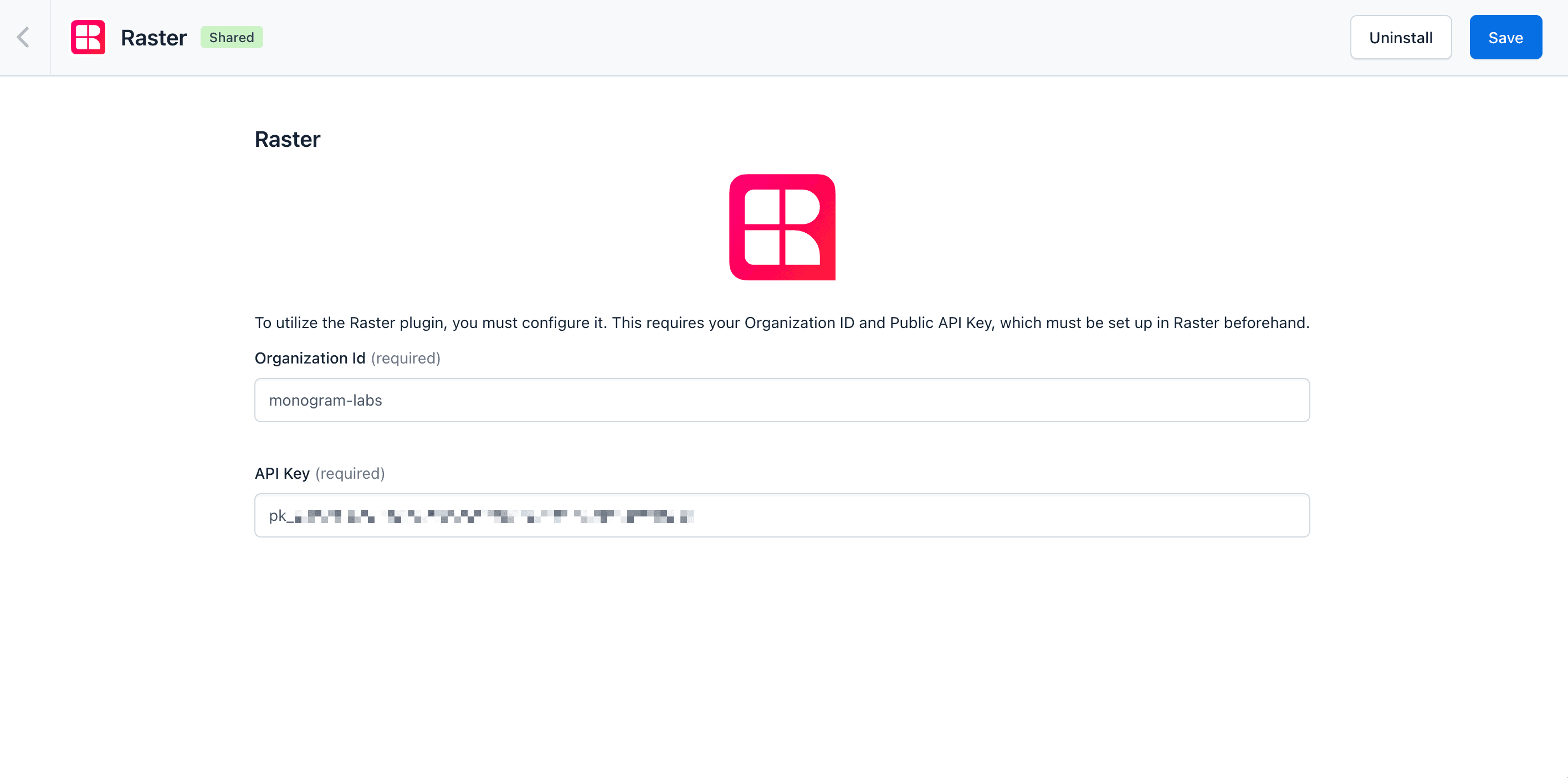
With the app installed in your Contentful space, open Apps → Installed apps → Configure for the Raster app. Enter the organization ID and API key you collected above.
Add a Raster field to a content type
The Raster app stores its data in a JSON field.
Add a JSON object field
In your content type, add a new field of type JSON object.
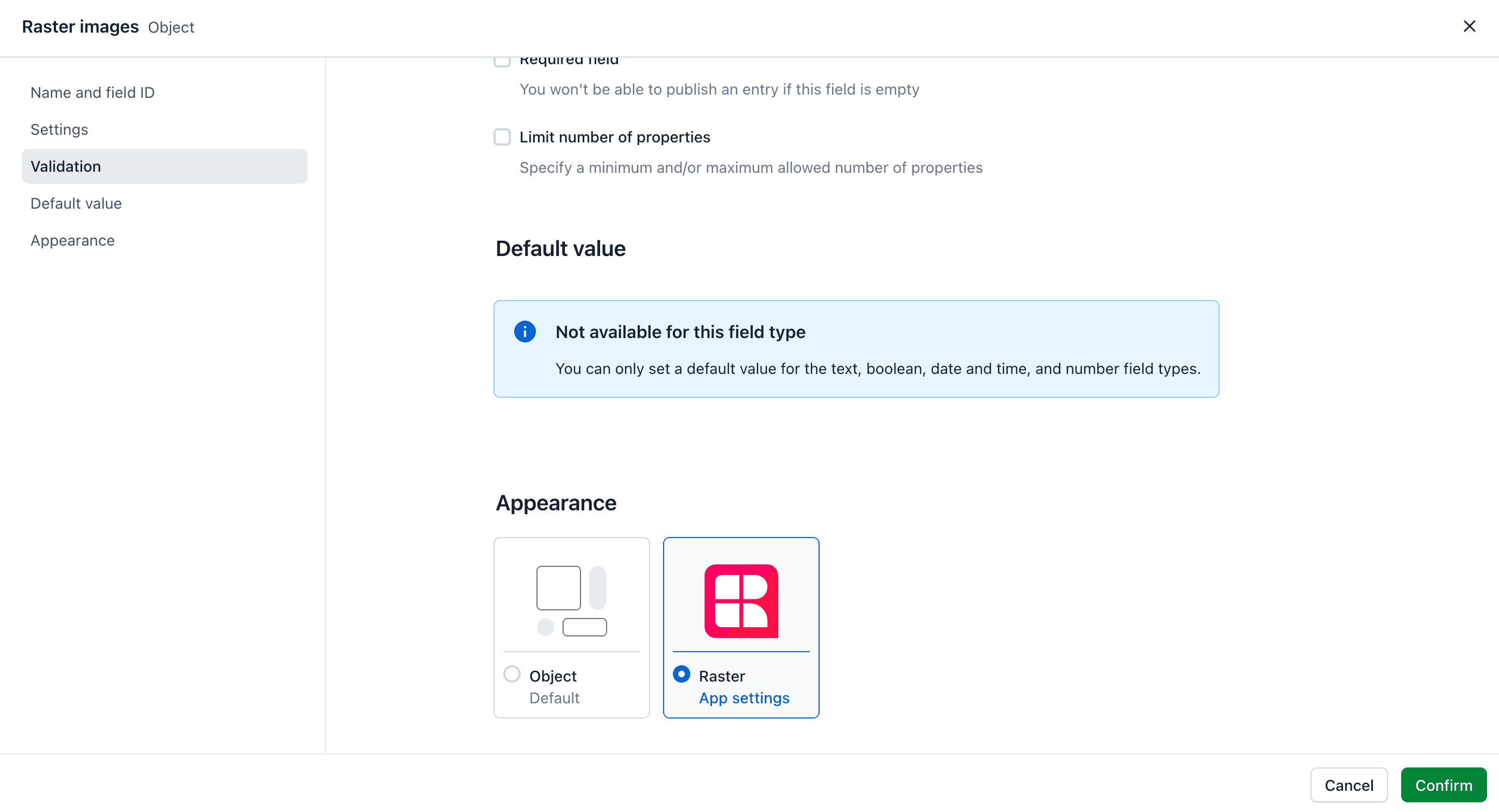
Set its appearance to Raster
In the field's Appearance tab, choose Raster. This tells Contentful to render the Raster picker for the field and store asset references as JSON.
Use the app
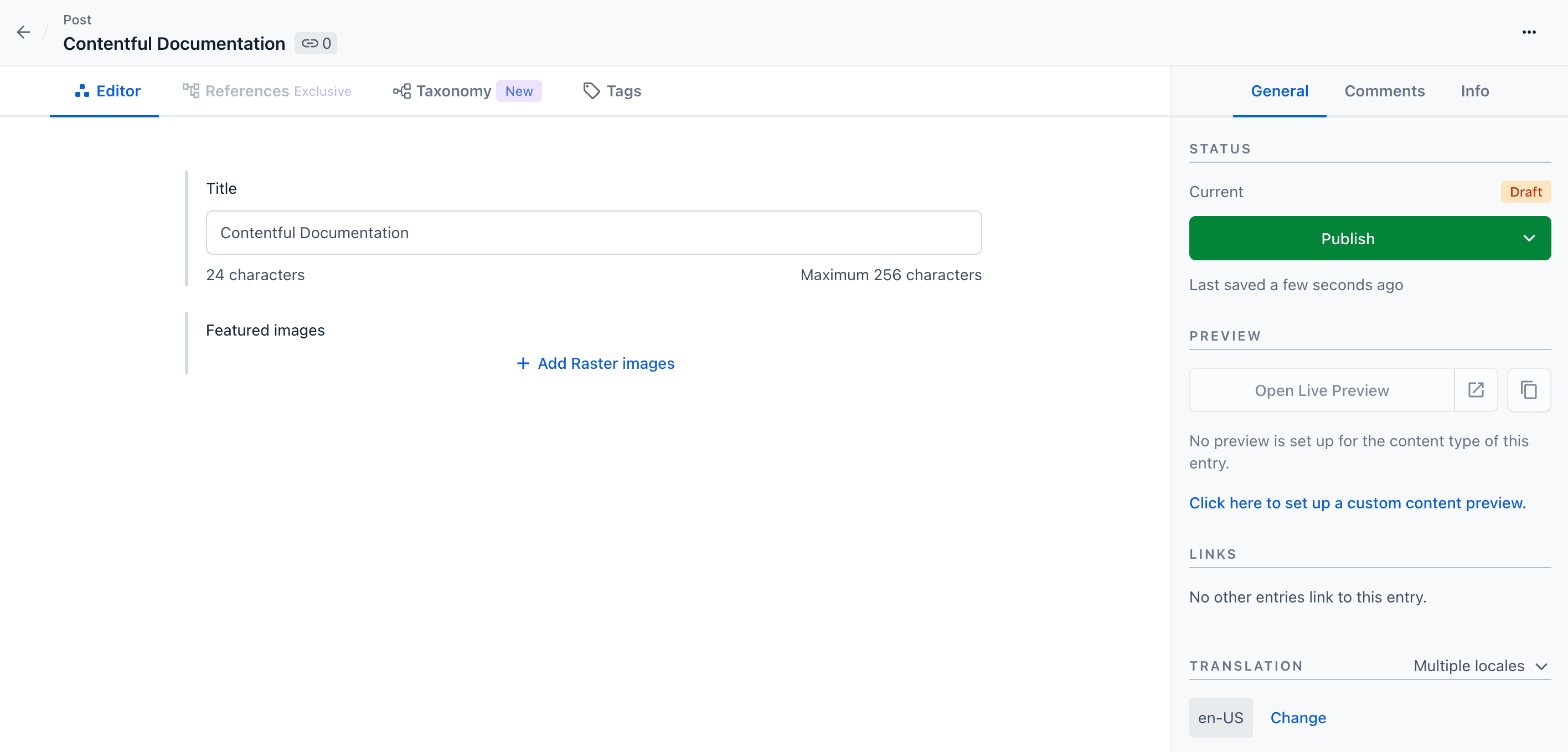
When you edit an entry with a Raster field, you will see the Raster widget. Select + Add Raster images to open the picker.
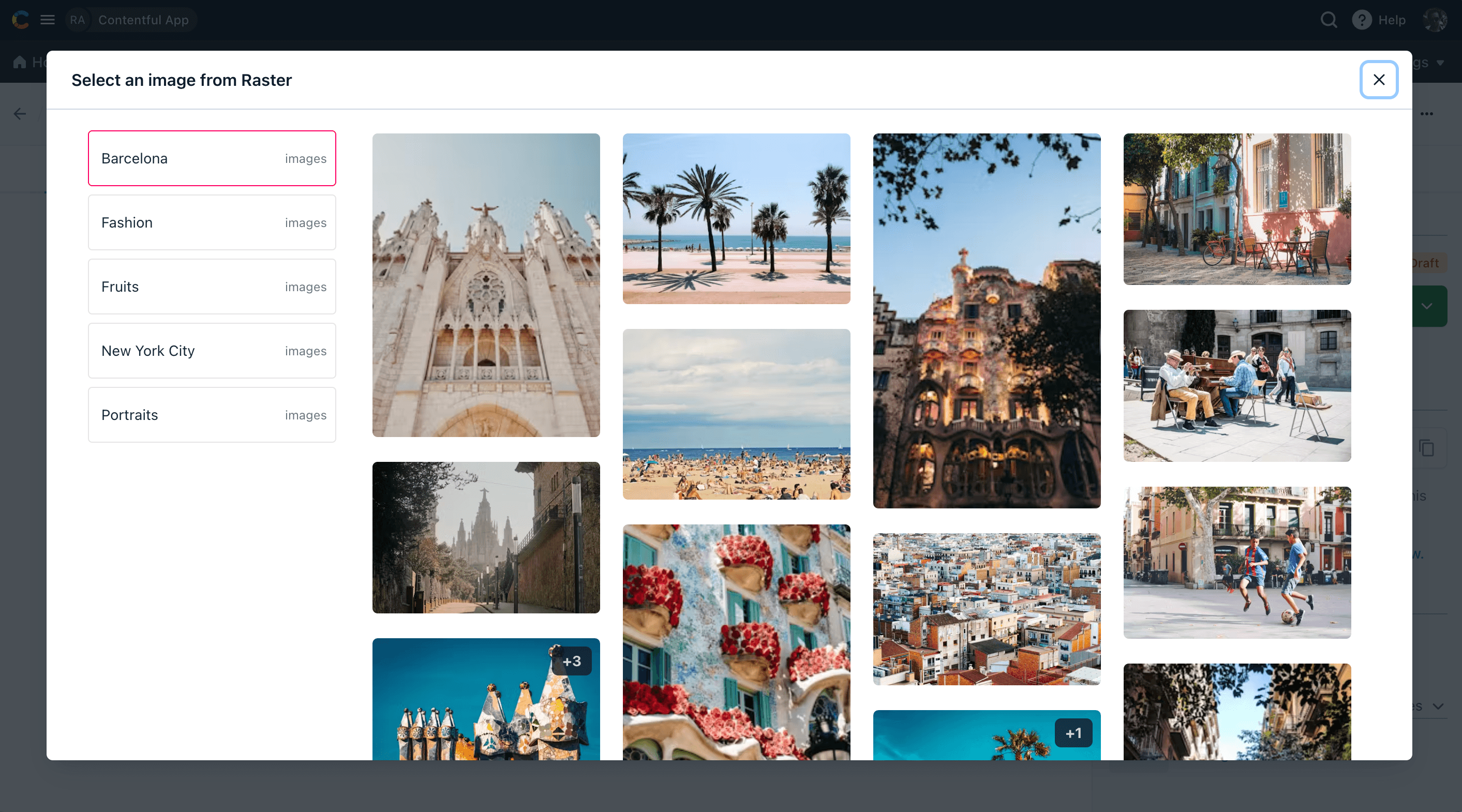
Libraries are listed on the left; the assets in the selected library appear on the right.
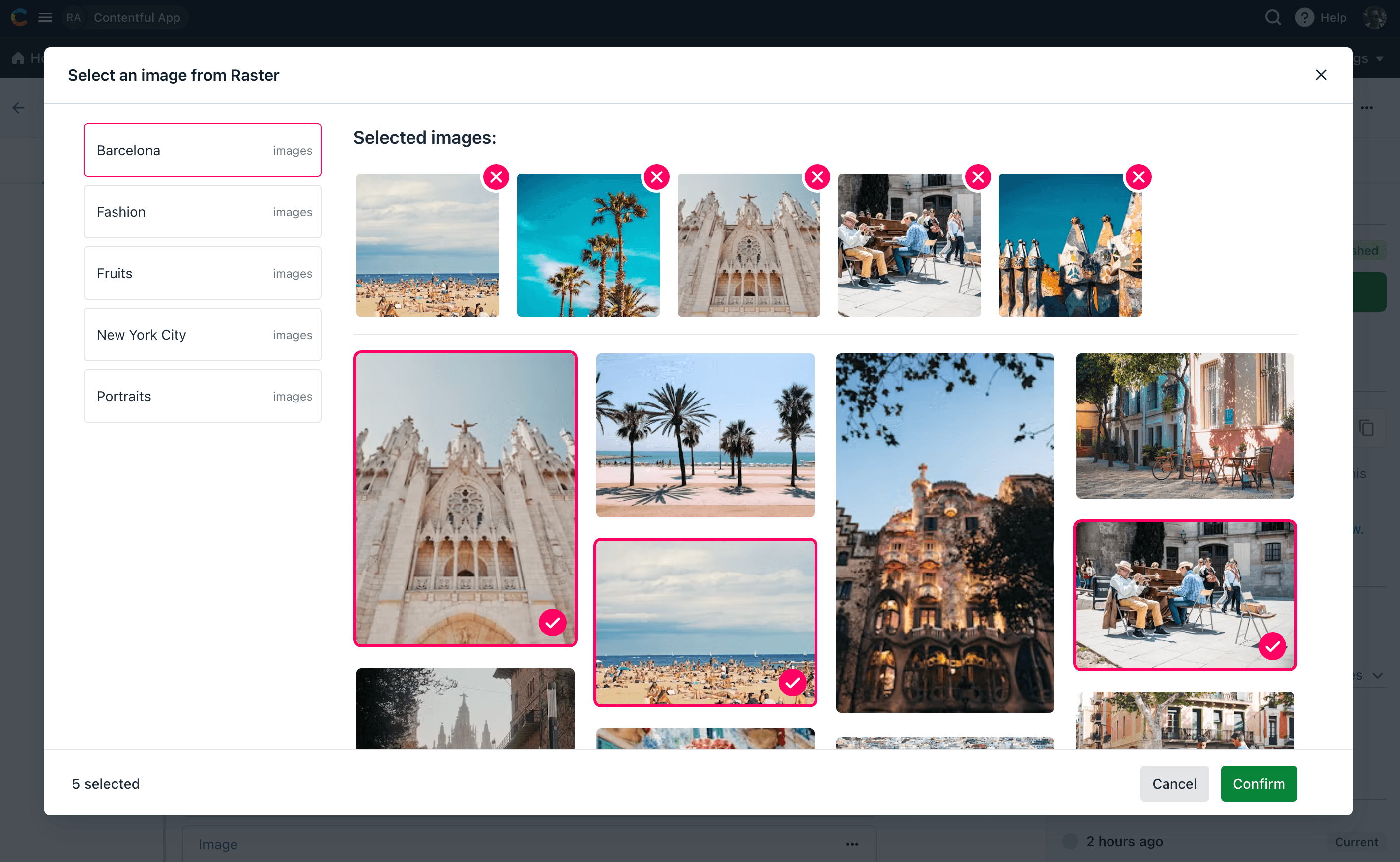
As you select images, they collect at the top of the picker, where you can reorder them or remove any you change your mind about. Confirm the selection to store the assets' details in the entry's JSON field.
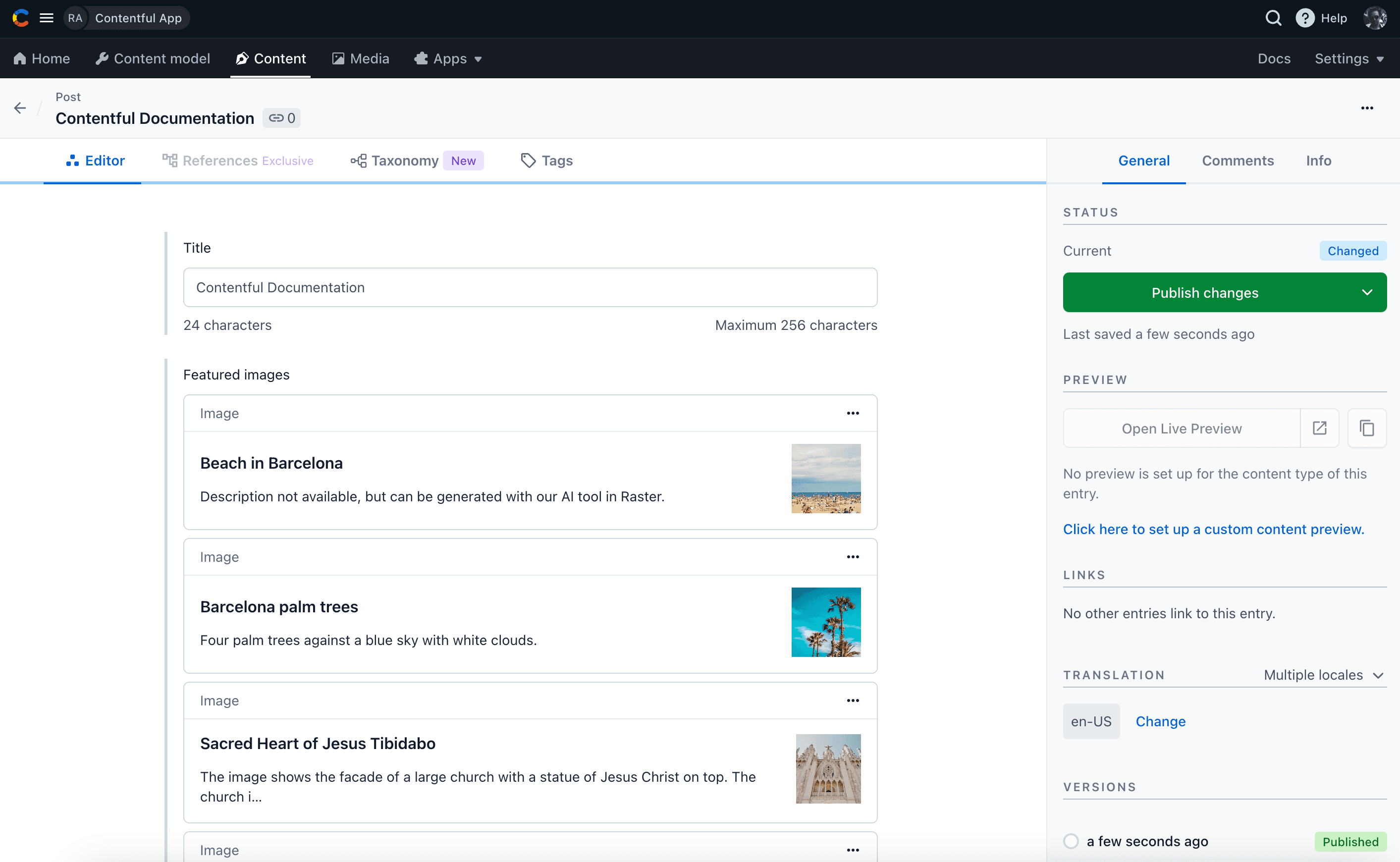
Selected assets can be previewed in the entry before you publish.
Query assets through Contentful's GraphQL API
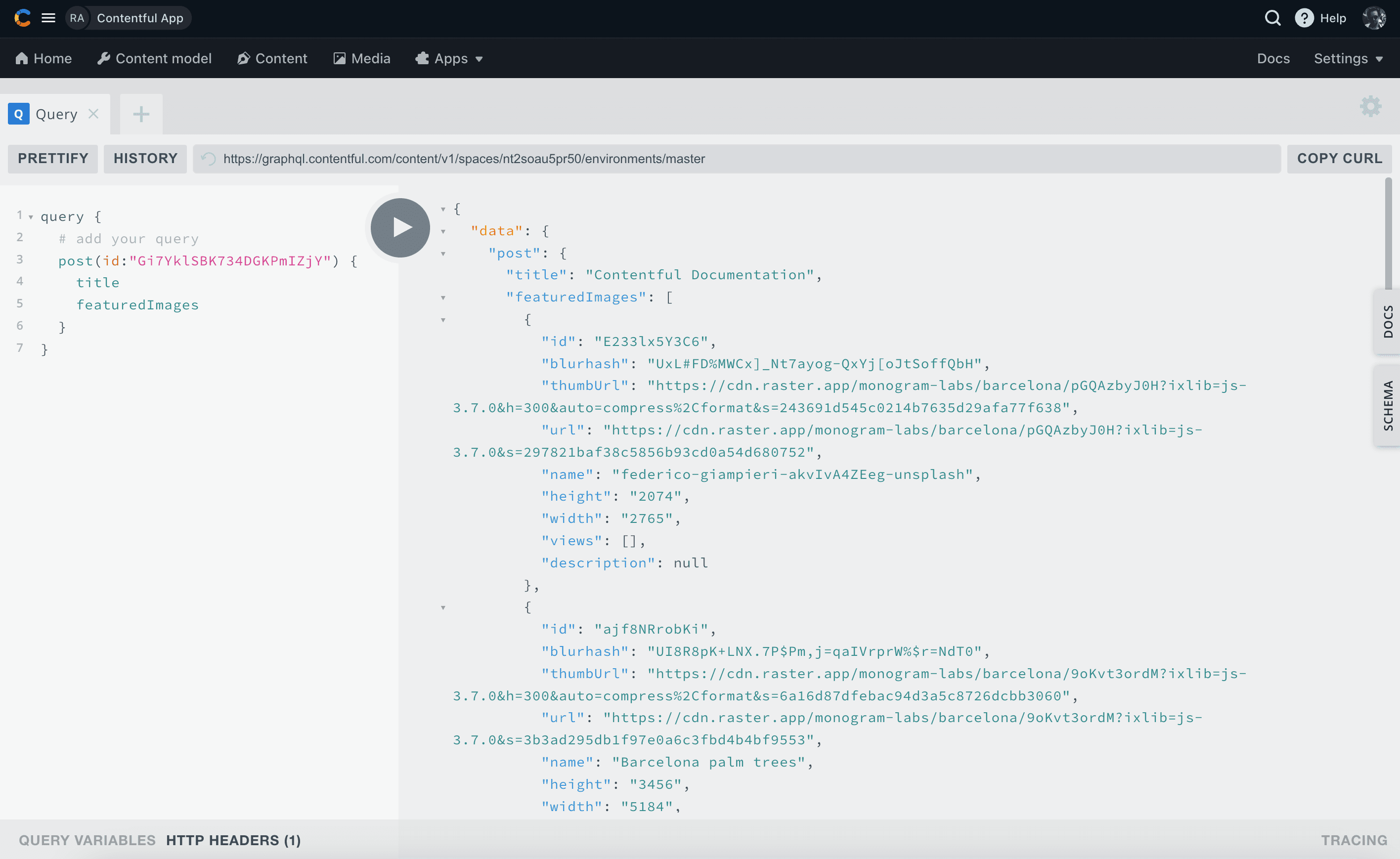
Because the references are stored as JSON, your Raster assets come back through Contentful's GraphQL API like any other field. The images themselves are hosted by Raster.
For programmatic access, use the Raster API directly.