Organizations & Libraries
How organizations, libraries, roles, and billing fit together in Raster.
Raster organizes everything into two layers: organizations and libraries. Understanding how they relate is the foundation for inviting teammates, structuring your images, and managing billing.
Libraries
A library is a collection of images. Each library is fully isolated from every other one — it has its own images, its own tags, and its own collaborators. You can create as many libraries as your plan allows, and every library belongs to exactly one organization.
Libraries are the right unit for separating work: one per brand, per client, per project, or per campaign.
Create a library
Before you start, make sure you are in the organization where the library should live. Then use whichever method you prefer — all three do the same thing.
- Open your organization home.
- Tap the New Library button in the header.
- Follow the prompts.
- Open the command palette with ⌘/Ctrl + K.
- Search for New Library and press Enter.
- Follow the prompts.
Created a library in the wrong organization?
You can move it without losing anything:
- Open Library Settings.
- Scroll down and tap Transfer.
- Follow the prompts.
Add people to a library
People must have a Raster account before they can be added to a library. If a teammate does not have one yet, send them an invite from the user menu in the top-left corner.
To add someone, open Library Settings (the cog icon next to the library name), enter their email, and choose a role:
| Role | Can do |
|---|---|
| Owner | Manage members, edit library information, and delete the library. |
| Editor | Add images and edit tags. |
| Viewer | View images and all of their information. Viewers are always free. |
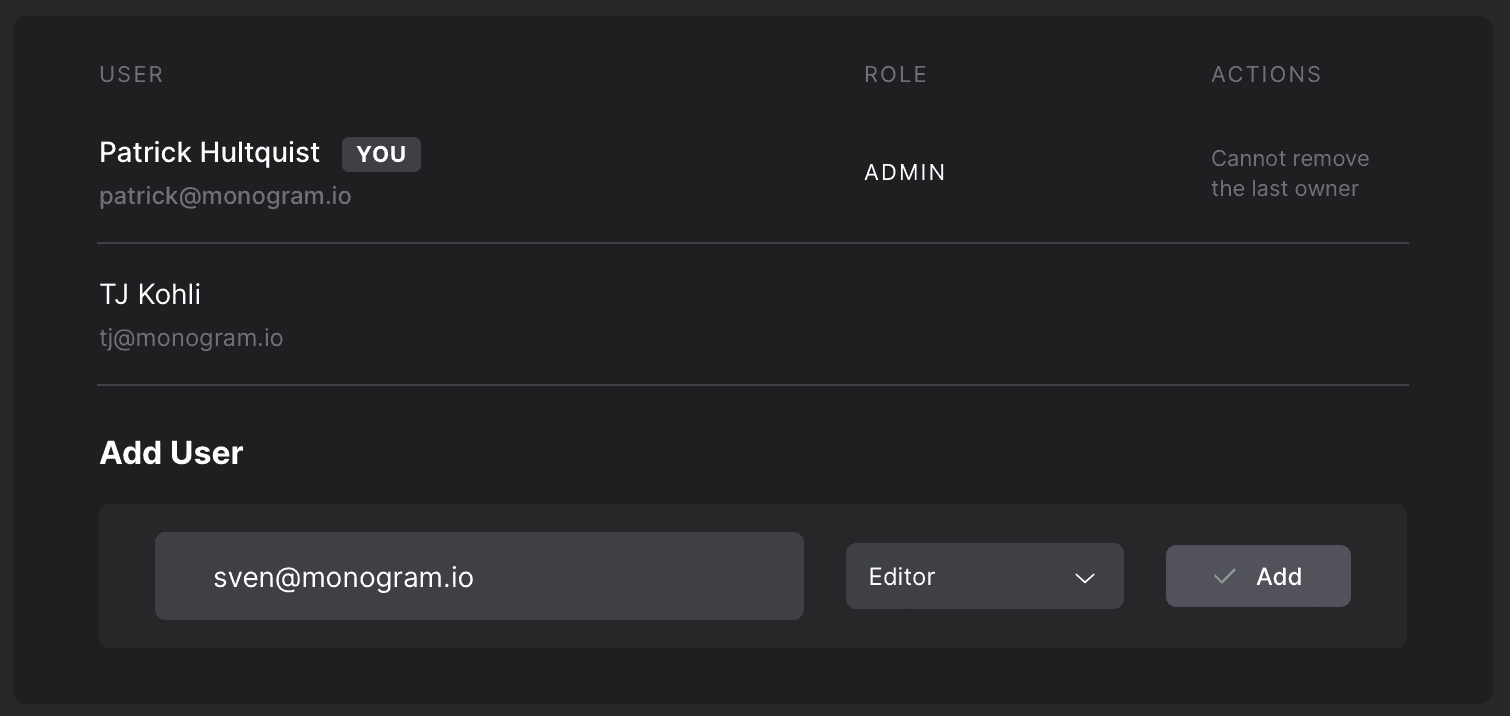
Viewers are free and unlimited — invite as many stakeholders, clients, and reviewers as you need without affecting your bill.
Organizations
An organization represents a team or company — though it can also be a single, personal account. Organizations group libraries together and add a layer of security and administration on top.
Organization administrators can:
- See every library in the organization.
- Manage organization-wide settings such as URL, name, and avatar.
- Manage billing.
You can create as many organizations as you like. Billing is handled at the organization level, so each organization has its own plan and invoices.
How they fit together
- An organization contains one or more libraries.
- A library contains images, tags, and members.
- Roles are assigned per library, so someone can be an Editor in one library and a Viewer in another.
- Billing is per organization.
Raster Documentation
Learn how to store, organize, serve, and integrate your images with Raster — the next-gen photo manager for teams.
Using Raster from an AI agent
A runbook for LLMs and AI agents — discover Raster, authenticate, and drive a library end to end over MCP, REST, or GraphQL, with or without a Raster account.